
Archive of the Gamebuino Classic forum (2014-2018), rebuilt from the pages kept by the Wayback Machine: only part of the topics and pages were captured. Read-only. Removal on request: hi@gamebuino.com.
Forum › Project Guidance & Game development
Creating Logo and Slides for .INF File
Taedlar Sun Sep 17, 2017 10:07 am
Hello!
I am having troubles creating feasable Logo and Slides for the .INF file.
Any specific fonts to be installed so that at least three lines of text can be added in to a slide for the instructions?
Any tools and/or toturials you can recommend?
P.S.: I am playing around with gimp and are able to produce bmp or png with the correct pixel size (e.g. 84 x 32 for the slides). However - I can't get any decent text on it that is readable as the slides are so small.
Thanks!
Taedlar
I am having troubles creating feasable Logo and Slides for the .INF file.
Any specific fonts to be installed so that at least three lines of text can be added in to a slide for the instructions?
Any tools and/or toturials you can recommend?
P.S.: I am playing around with gimp and are able to produce bmp or png with the correct pixel size (e.g. 84 x 32 for the slides). However - I can't get any decent text on it that is readable as the slides are so small.
Thanks!
Taedlar
Drakker Sun Sep 17, 2017 5:09 pm
Can you tell us exactly what you want to write? The smallest fonts are around 3x5 pixels, so there is a limit to what you can fit in a 84x32 image.
erico Sun Sep 17, 2017 5:43 pm
You can also use a 3x3 font since the slider are pretty much full images instead of code.
They may seem hard to read but when compiled in words, they became easier to recognize.
Here a 3x3 and 3x4 font.
edit: I did make a 3x3 font myself in the style of my 3x4 here, but I can´t seem to find it now, so I uploaded this internet version. Some letters could be better, but you get the idea.
They may seem hard to read but when compiled in words, they became easier to recognize.
Here a 3x3 and 3x4 font.
edit: I did make a 3x3 font myself in the style of my 3x4 here, but I can´t seem to find it now, so I uploaded this internet version. Some letters could be better, but you get the idea.
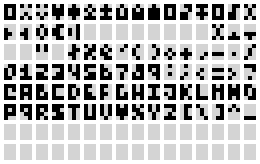
- chr 01.png (169.47 KiB) Viewed 4938 times
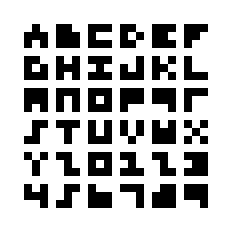
- 232px-3x3_typeface.svg.png (901 Bytes) Viewed 4938 times
aoneill Sun Sep 17, 2017 9:19 pm
I've had some success in Gimp by making sure antialiasing is disabled for the font tool and tweaking the font size till something looks good. But you are right; most of the fonts look terrible at these small sizes. http://www.dafont.com/04b-03.font with a font size of 8px worked well for me.
Is there a way to take something like erico posted and use it as a normal font, or would it be copying and pasting a character at a time in the graphics program?
Is there a way to take something like erico posted and use it as a normal font, or would it be copying and pasting a character at a time in the graphics program?
erico Sun Sep 17, 2017 9:28 pm
If you mean using small fonts inside gimp...yep there is. I will take a look when I get home.
Taedlar Sun Sep 17, 2017 10:15 pm
Hallo!
Thanks a lot for your quickand valuable replies!
Also with your help I managed in the mean time. Here what I used:
Good luck!
P.S.: Some basic hints here would be useful: http://gamebuino.com/wiki/index.php?title=Getting_started#Add_a_logo_and_description
P.P.S.: Here the simple slide I produced (as it was asked earlier) - as gif as well as the gimp file (xcf zip compressed):
Thanks a lot for your quickand valuable replies!
Also with your help I managed in the mean time. Here what I used:
- Gimp as a base (MS paint might (??) be easier)
- Open a new file: size 84 x 32 px; background: transparent
- I used the font "visitor BRK" that I downloaded from http://www.dafont.com/de/visitor.font and installed as Windows font by double clicking on the *.tiff files and selecting "install" in the dialog that opens. Fell free to check and test other fonts. Here some samples I used to decide what to use in the final *.INF slide :
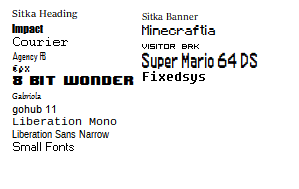
- png showing some fonts usable (and also not usable) for texts in the GAMEBUINO *.INF file.
- Schriftarten_Proben.png (5.43 KiB) Viewed 4928 times
- font size 8 px
- I dissabled hinting and anti-aliasing according to this reference https://graphicdesign.stackexchange.com/questions/8440/how-to-sharpen-text-in-gimp. Note: There are different anti-aliasing methods and I checked what I liked most.
- Merge all Layers into one
- Export as gif
Good luck!
P.S.: Some basic hints here would be useful: http://gamebuino.com/wiki/index.php?title=Getting_started#Add_a_logo_and_description
P.P.S.: Here the simple slide I produced (as it was asked earlier) - as gif as well as the gimp file (xcf zip compressed):

- Simple Makerbuino *.INF Slide produced with gimp.
- TWTEST03_INF_Slide1_v06.gif (1.05 KiB) Viewed 4928 times
Attachments: TWTEST03_INF_Slide1_V06.xcf.zip (not archived)
erico Mon Sep 18, 2017 3:22 am
Ok, got home finally but it is quite late.
I could not make gimp or photoshop comply to my small fonts (I must be tired).
But here is a hack, you can use those fonts with the likes of notepad, print the screen and paste on gimp
in case you need lot´s of text. :D
Here is Romen´s font:
https://romenx.deviantart.com/art/Romen ... -658352765
You can use the likes of Fony to design your own fonts too:
http://hukka.ncn.fi/?fony
In my case, I use a tool that comes with GLBasic to do the same.
I hope these help.
Cheers.
I could not make gimp or photoshop comply to my small fonts (I must be tired).
But here is a hack, you can use those fonts with the likes of notepad, print the screen and paste on gimp
in case you need lot´s of text. :D
Here is Romen´s font:
https://romenx.deviantart.com/art/Romen ... -658352765
You can use the likes of Fony to design your own fonts too:
http://hukka.ncn.fi/?fony
In my case, I use a tool that comes with GLBasic to do the same.
I hope these help.
Cheers.